20 steps
A full walkthrough from the create-room button to safe room edits after publishing.
 VIEDME PRIVATE CHALLENGES
This guide follows the full room-owner flow: choosing Create Room, selecting Lazy Step Challenge, setting the room identity, configuring tracking and charity options, then finding and sharing the invite code your players need to join.
20 steps
A full walkthrough from the create-room button to safe room edits after publishing.
Owner control
You choose the challenge format, visuals, description, tracking mode, dates, and access code.
Private by design
Players join with a code generated by the room owner, so the challenge stays intentional.
Before you start
For this tutorial we use Lazy Step Challenge because it is one of the most natural ways to start: walking is easy to understand, rankings are visible, and optional charity mode can make the challenge feel bigger than the leaderboard.
Walkthrough
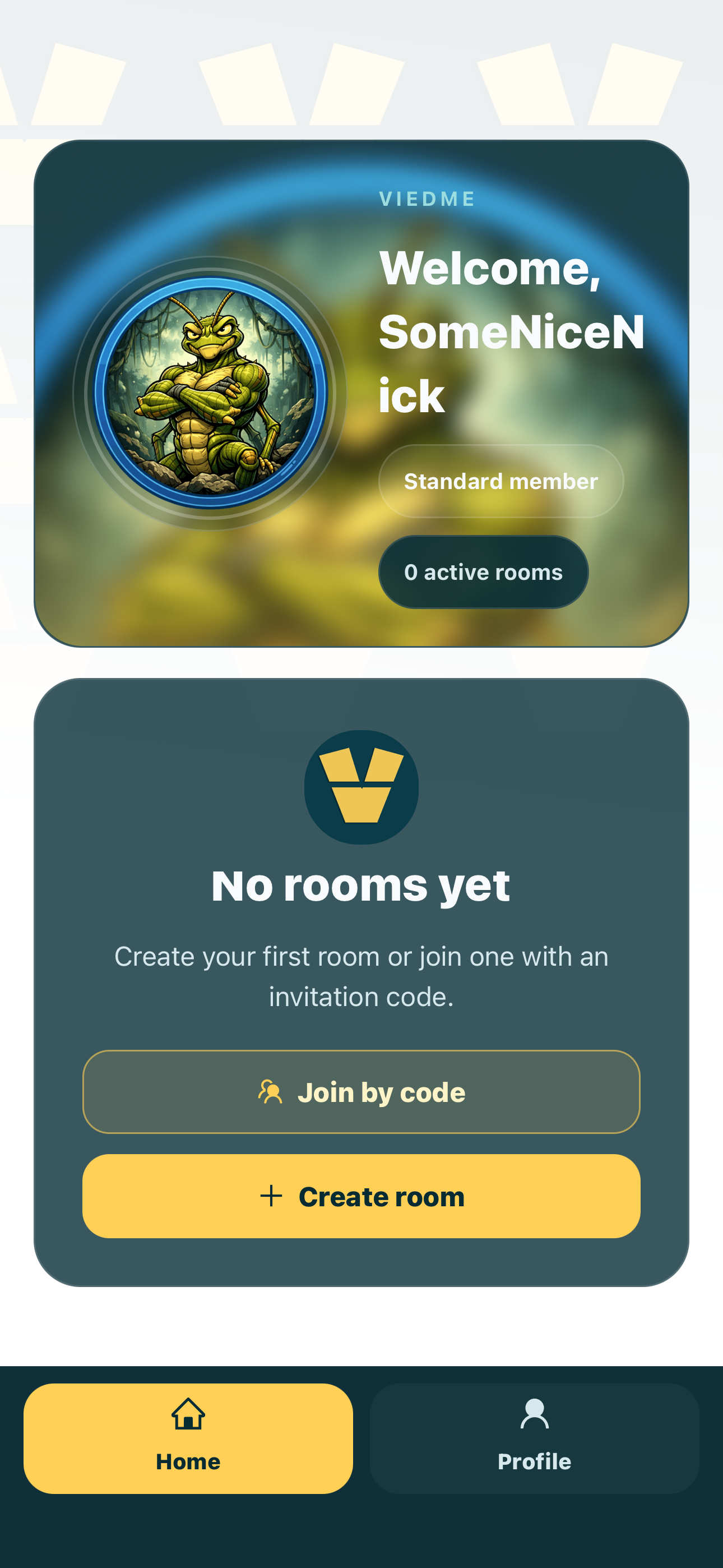
From the post-sign-up screen, choose the path for creating a new room instead of joining an existing one. This makes you the room owner and gives you control over the setup.
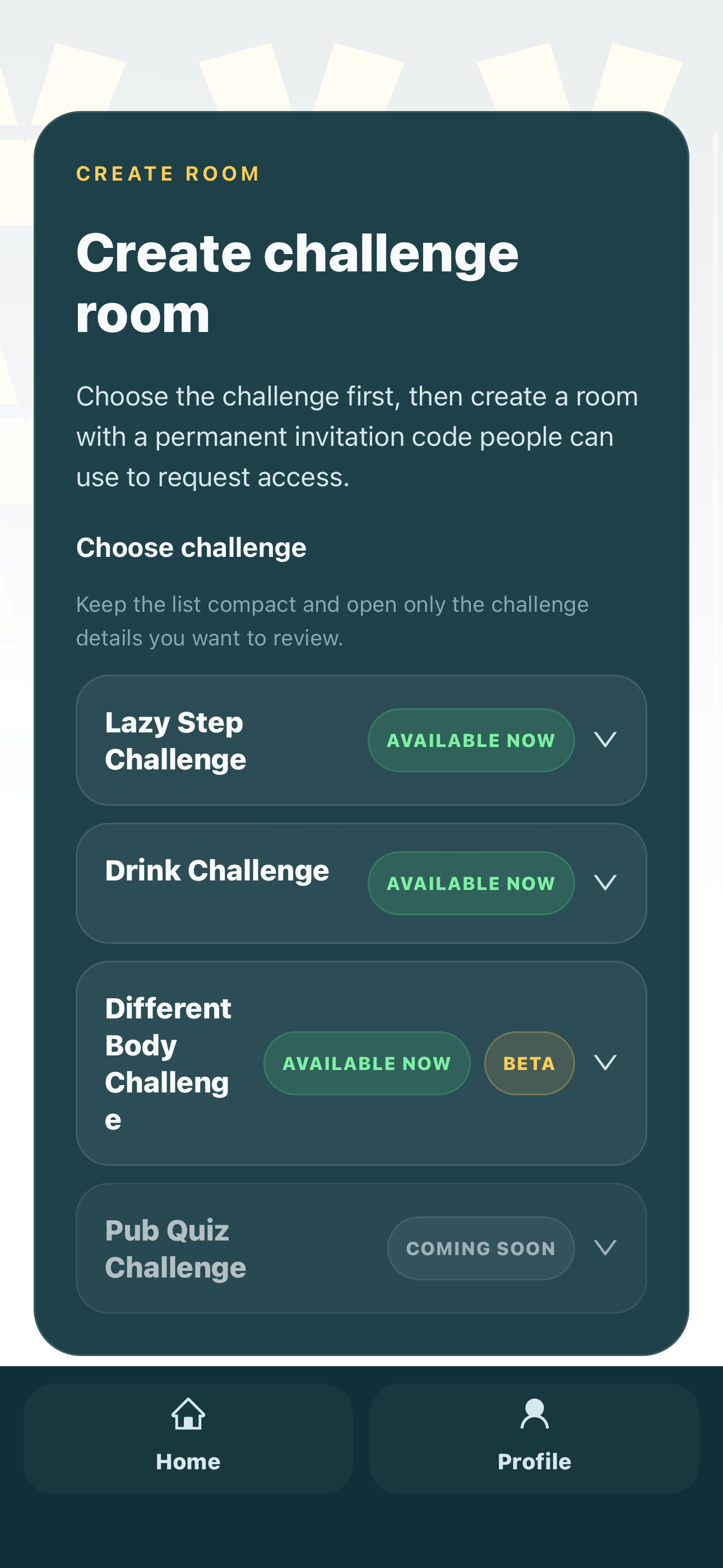
Browse the available challenge formats and choose the one that fits the experience you want to run. For this guide, we are creating a Lazy Step Challenge.
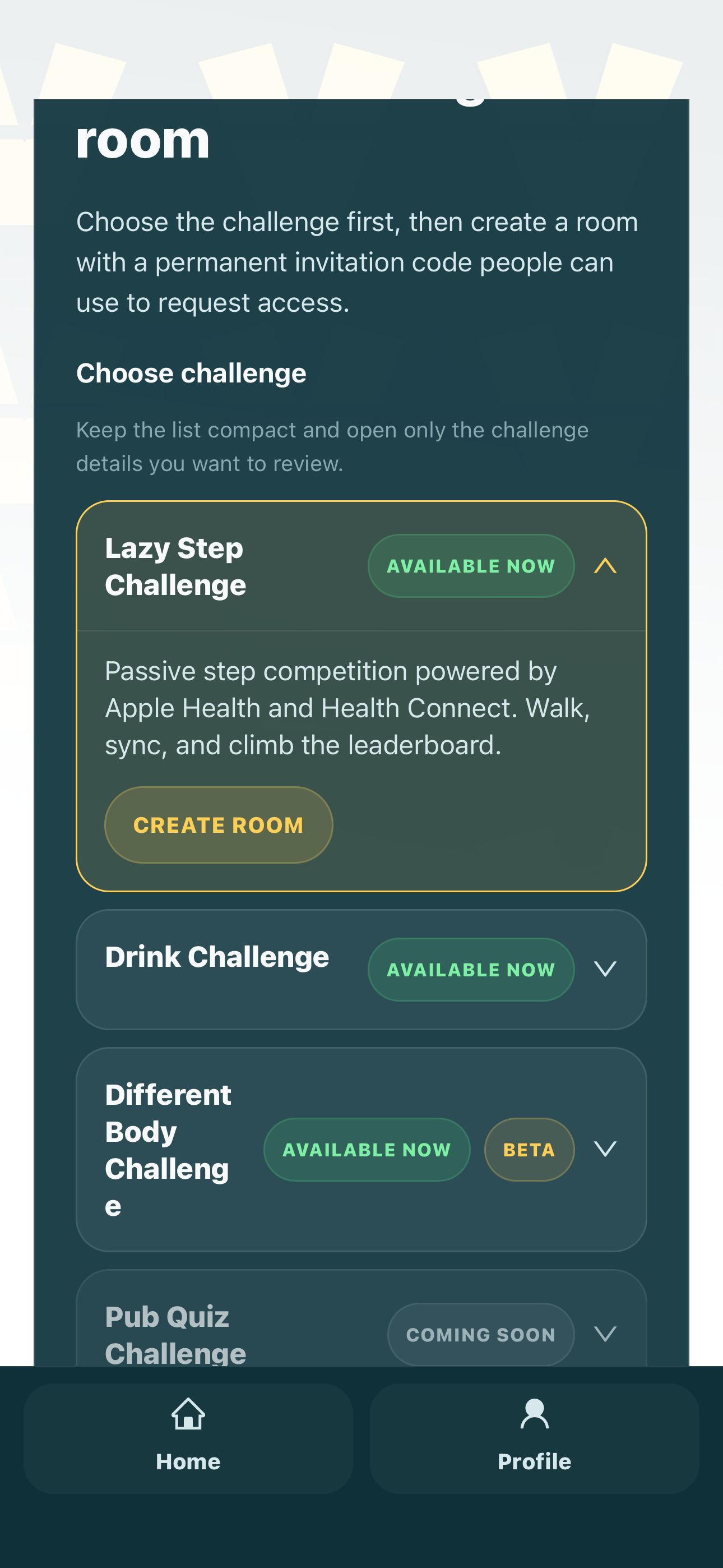
Select Lazy Step Challenge and tap the action to open the room setup flow. This is where the challenge starts becoming your own private competition.
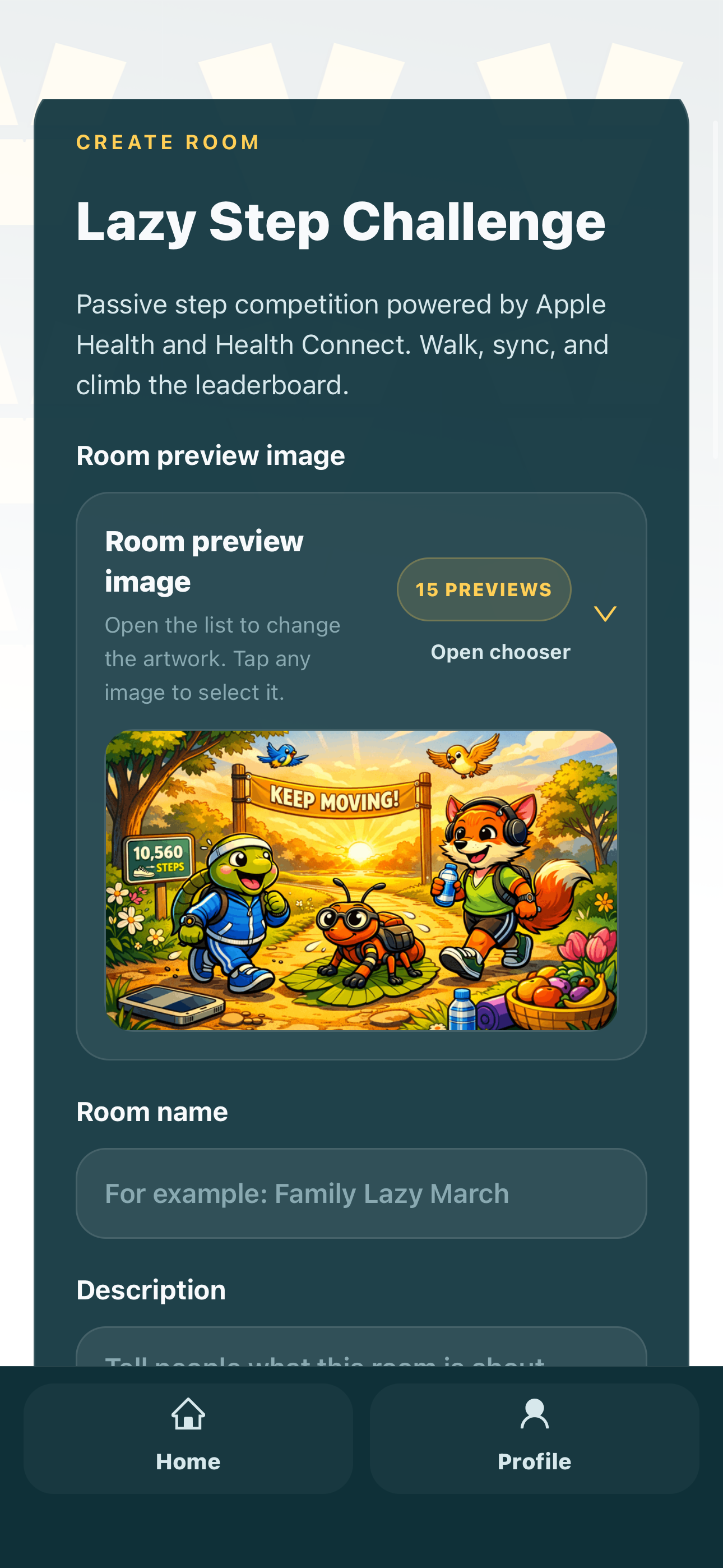
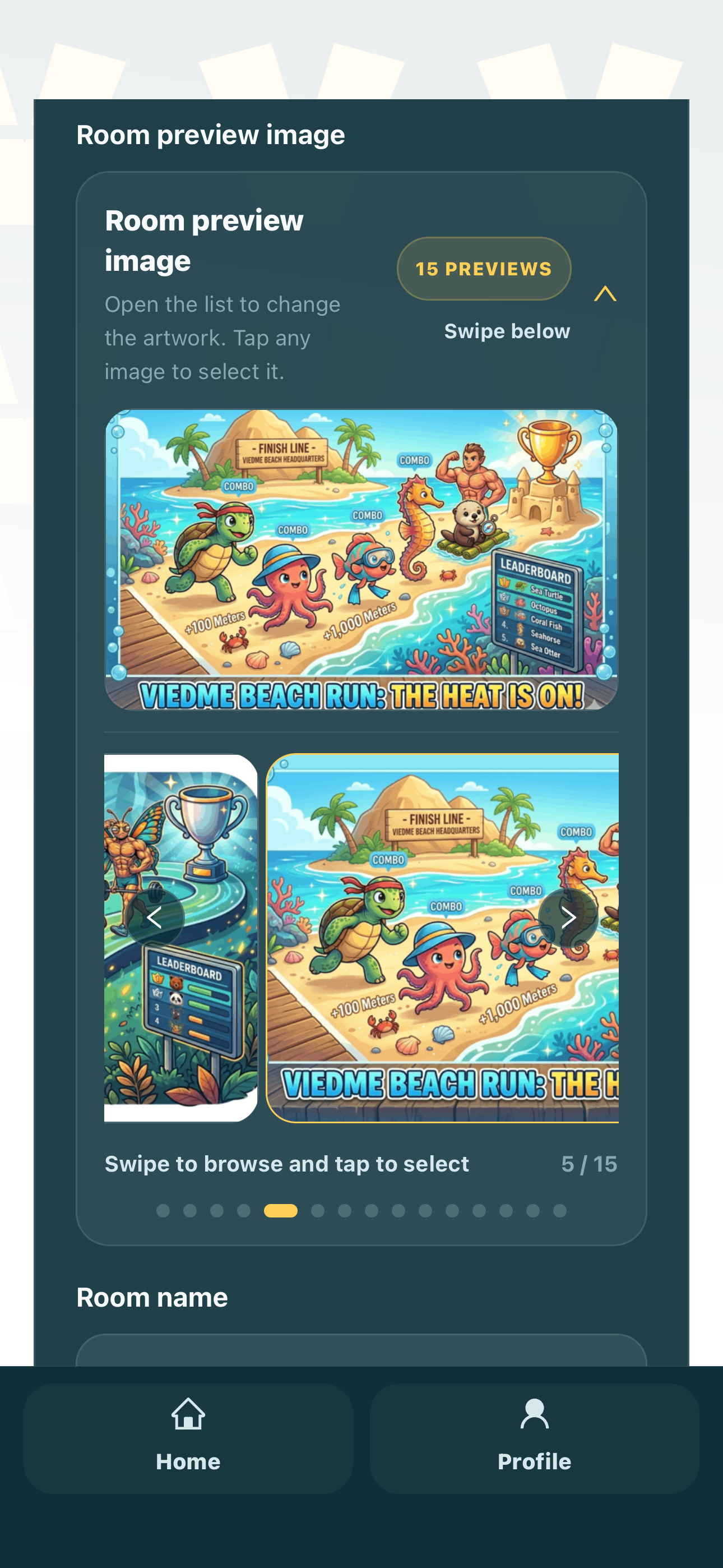
Choose a visual that matches the tone of the room. The preview image is often the first thing players notice when the room appears in their app.
Use the preview image slider to compare options and pick the one that best fits your group, event, or challenge theme.
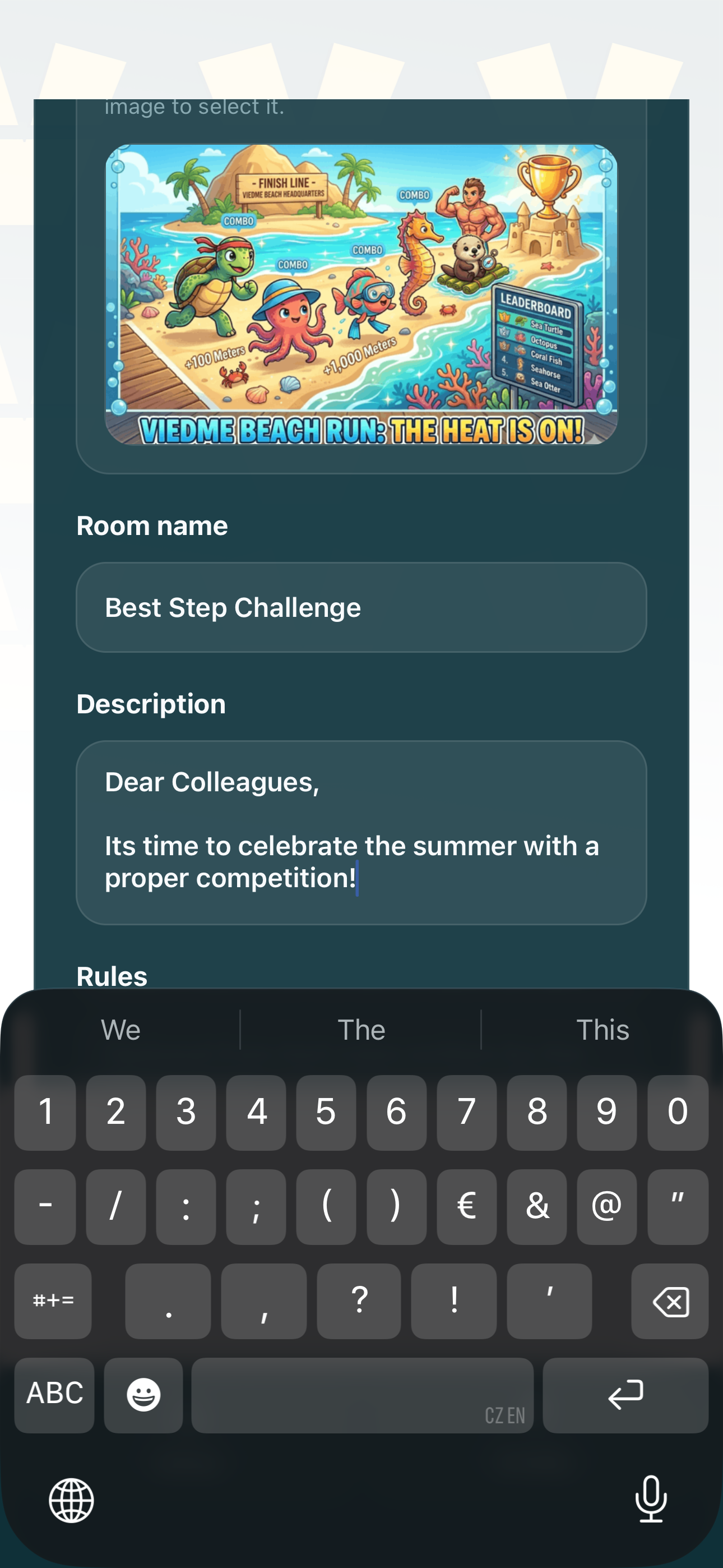
Give the room a name that people can understand immediately. A good name says what the room is about and makes it easier to recognize later.
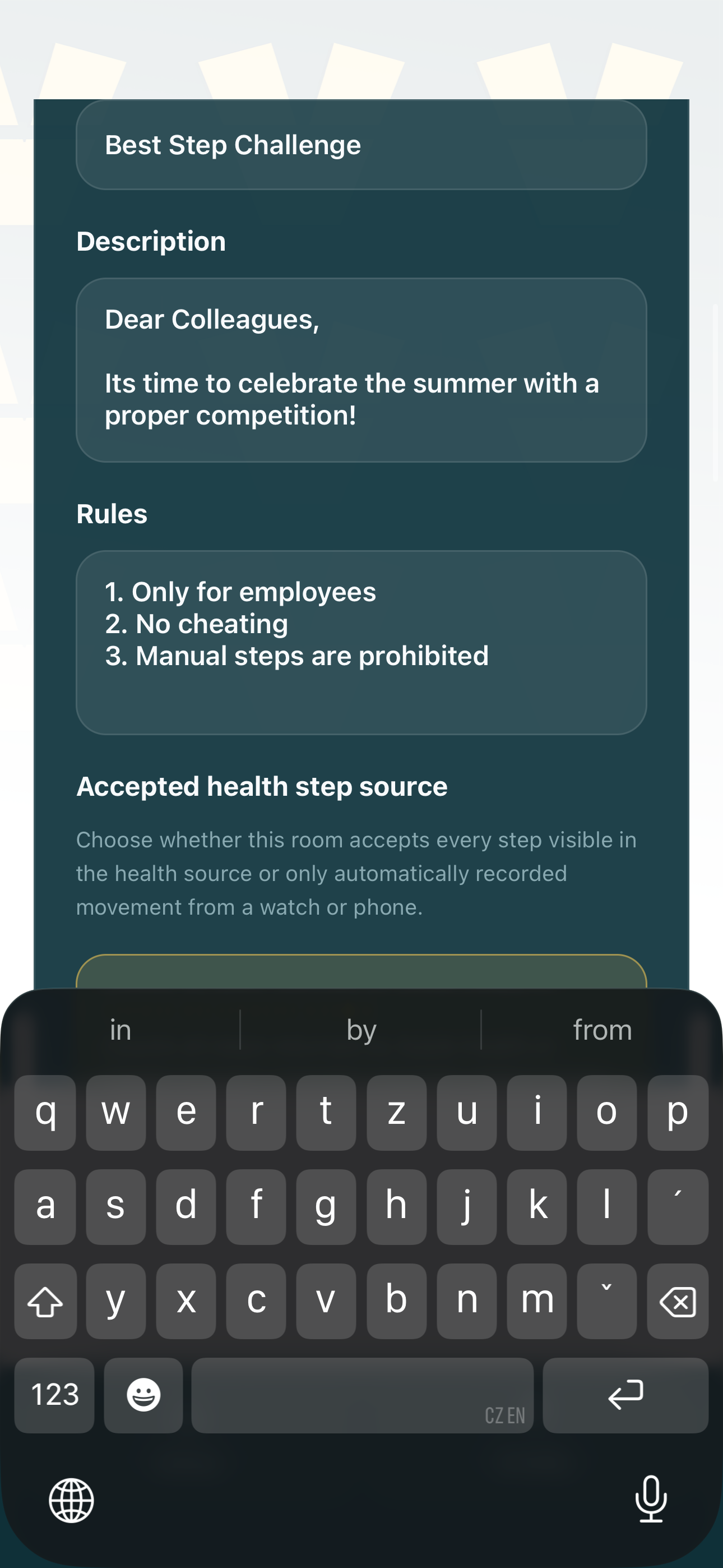
Use the description to explain the purpose of the room, the vibe of the challenge, and anything players should know before joining.
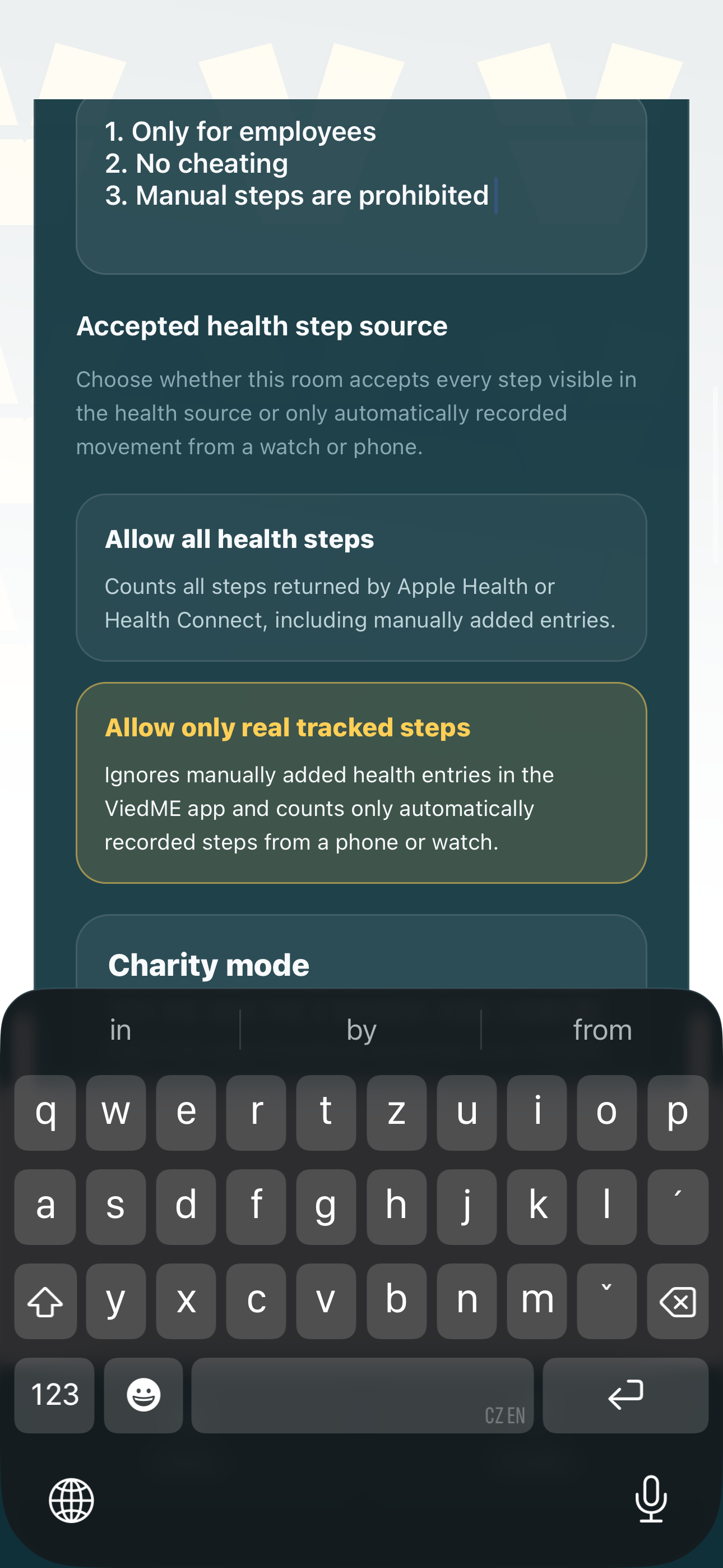
Choose how strict step counting should be. Allow all health steps counts everything received from supported health sources, including manually added activity from apps such as Google Fit or Apple Health. This is useful when players bike, train, or do other sports and want to convert that activity into steps. Only real tracked steps filters manually added entries out and counts only steps that were actually walked and tracked.
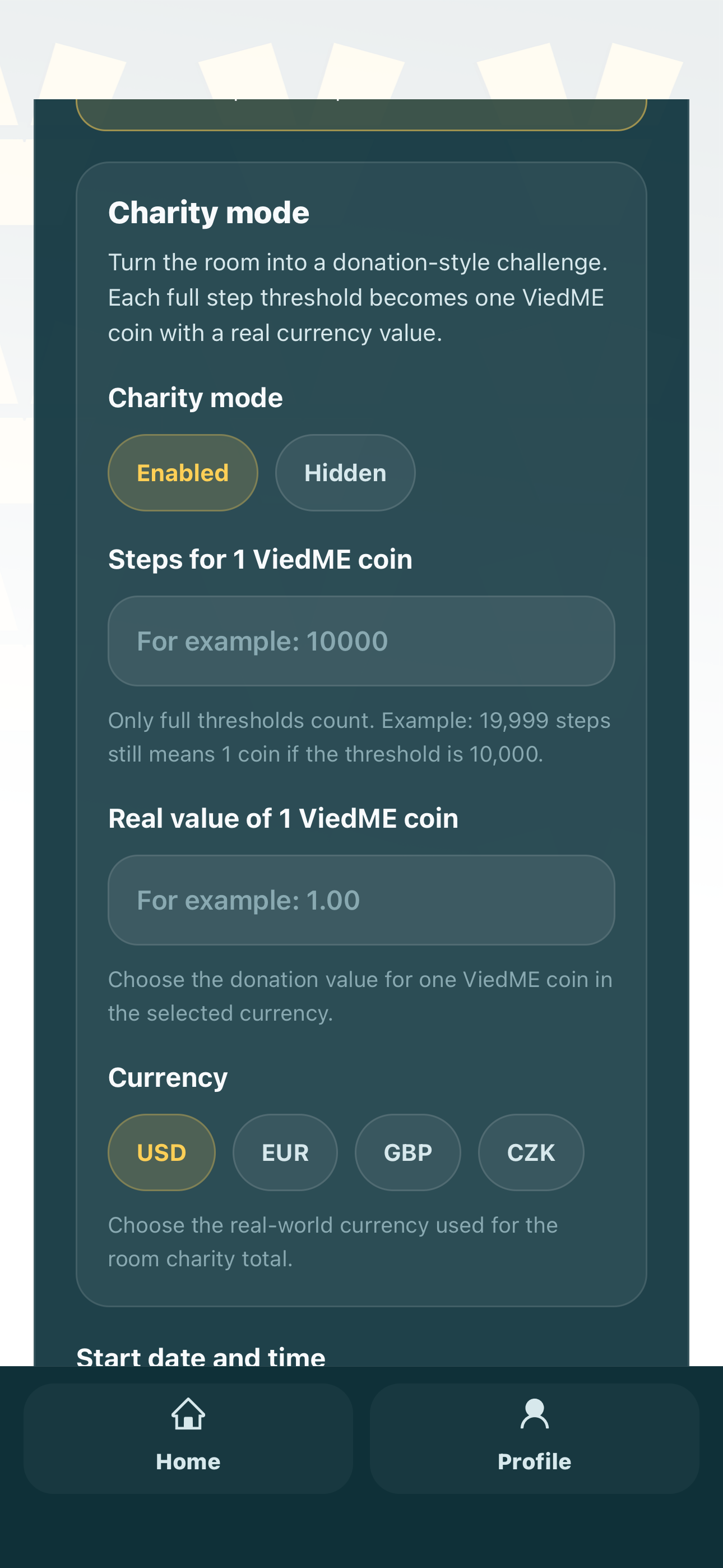
If charity mode is active, define the conversion before the room starts: how many steps create 1 ViedME coin, what 1 ViedME coin is worth, and which currency the room uses. Supported currencies are USD, EUR, GBP, and CZK. For example, 15,000 steps can create 1 ViedME coin, and 1 ViedME coin can represent 1 EUR for charity or any purpose the owner clearly defines in the room rules.
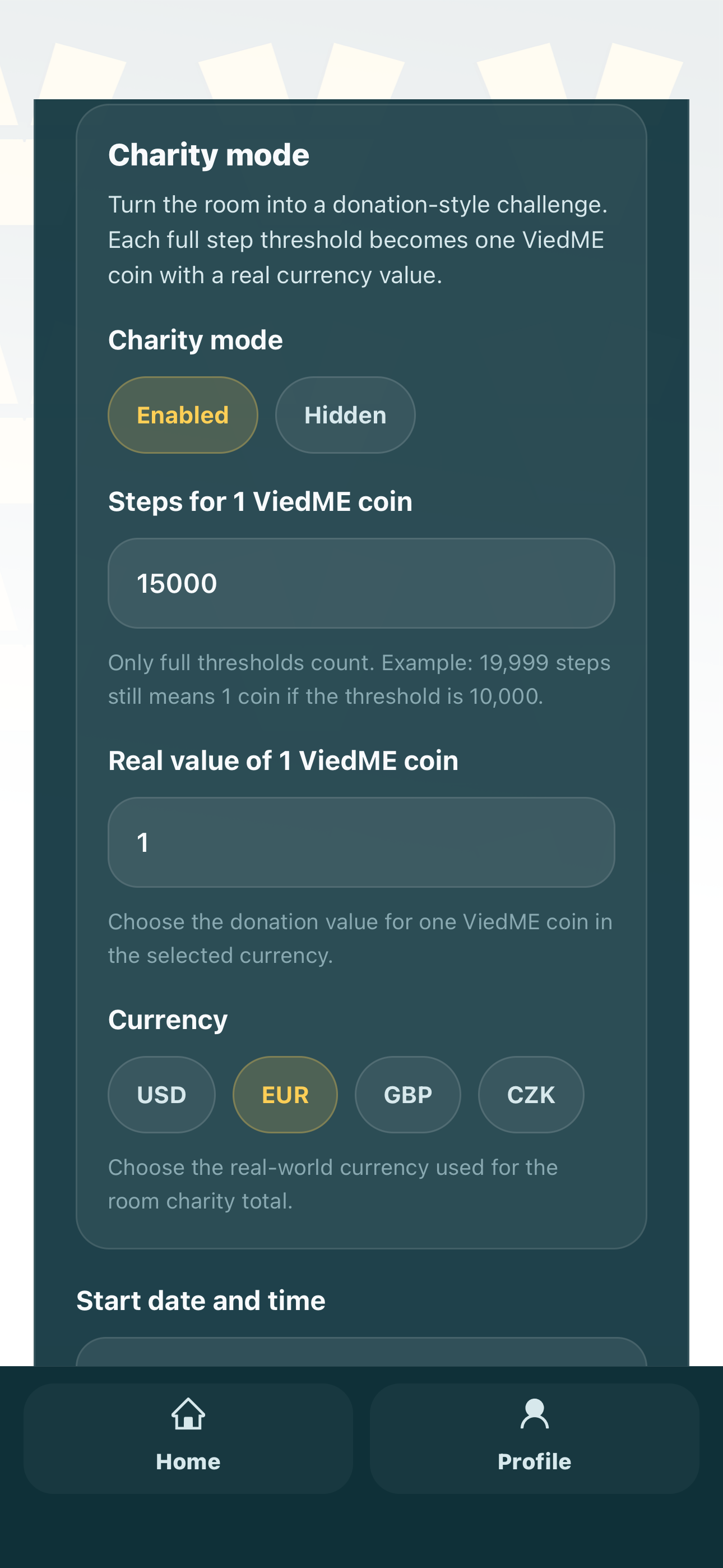
Preview the charity configuration before moving forward. This helps you understand how the charity layer will appear and what it adds to the challenge.
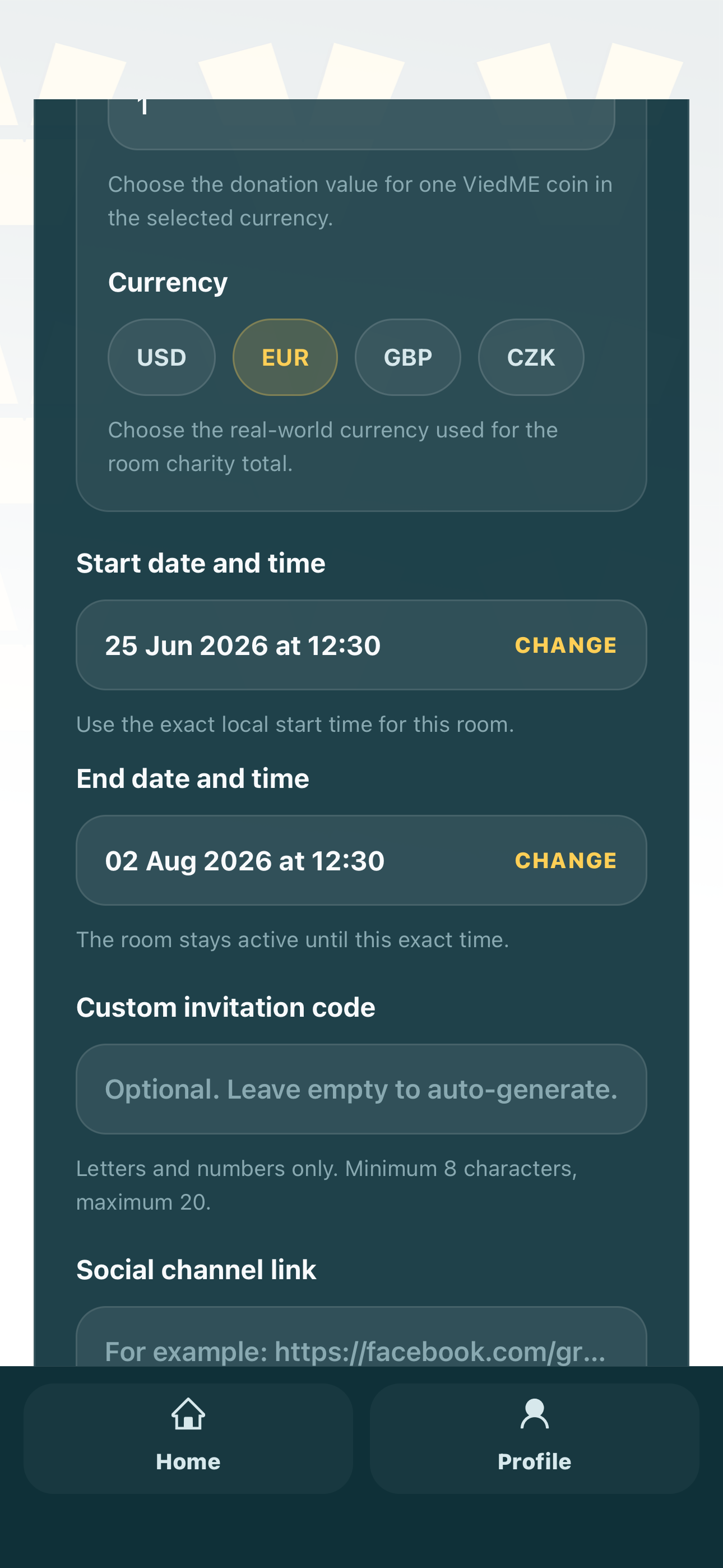
Set the start and end dates for the challenge. A clear date range gives the room structure and tells players exactly when the competition counts. Available duration depends on membership: free owners can create shorter rooms, while premium owners can create much longer rooms.
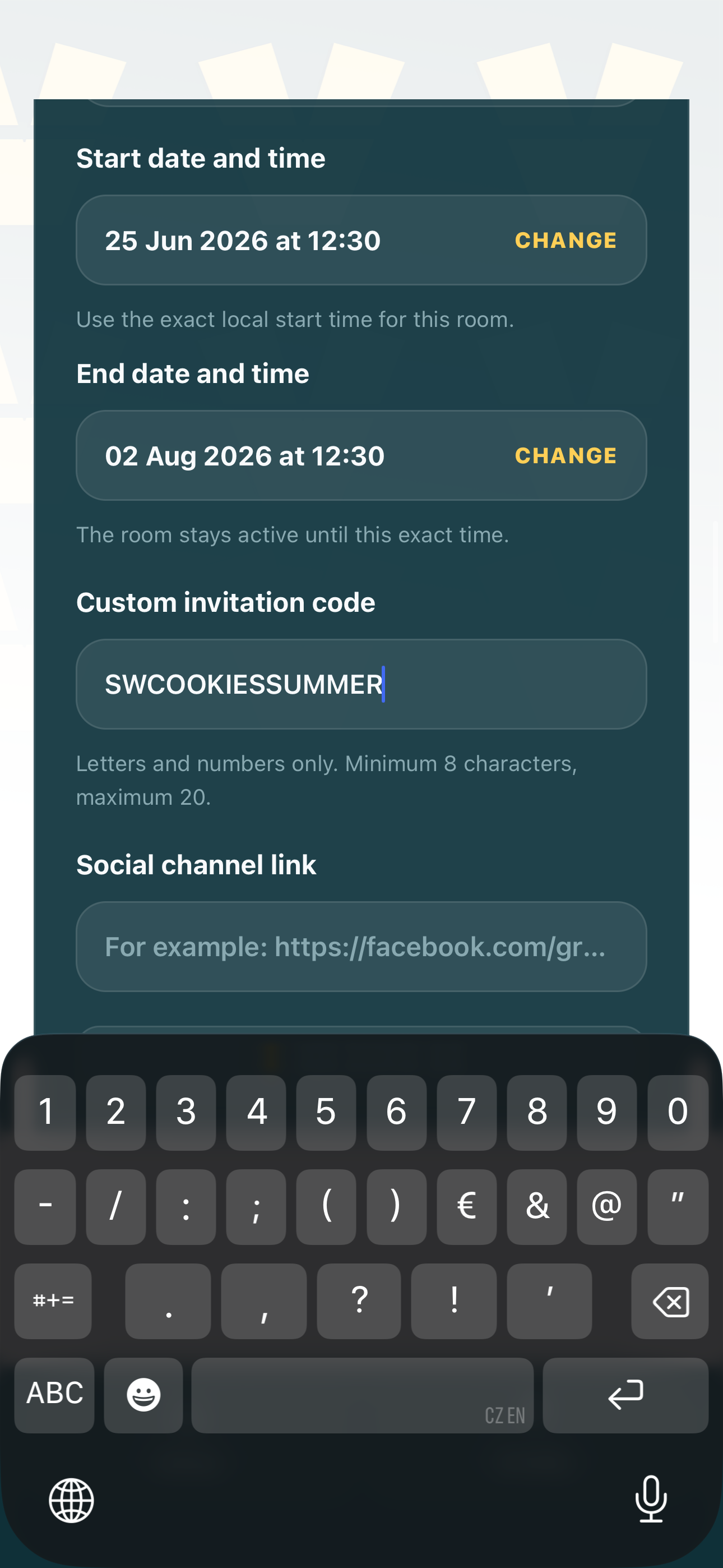
Choose the private code people will use to request or enter the room. The code should be easy enough to share, but specific enough to belong to your room.
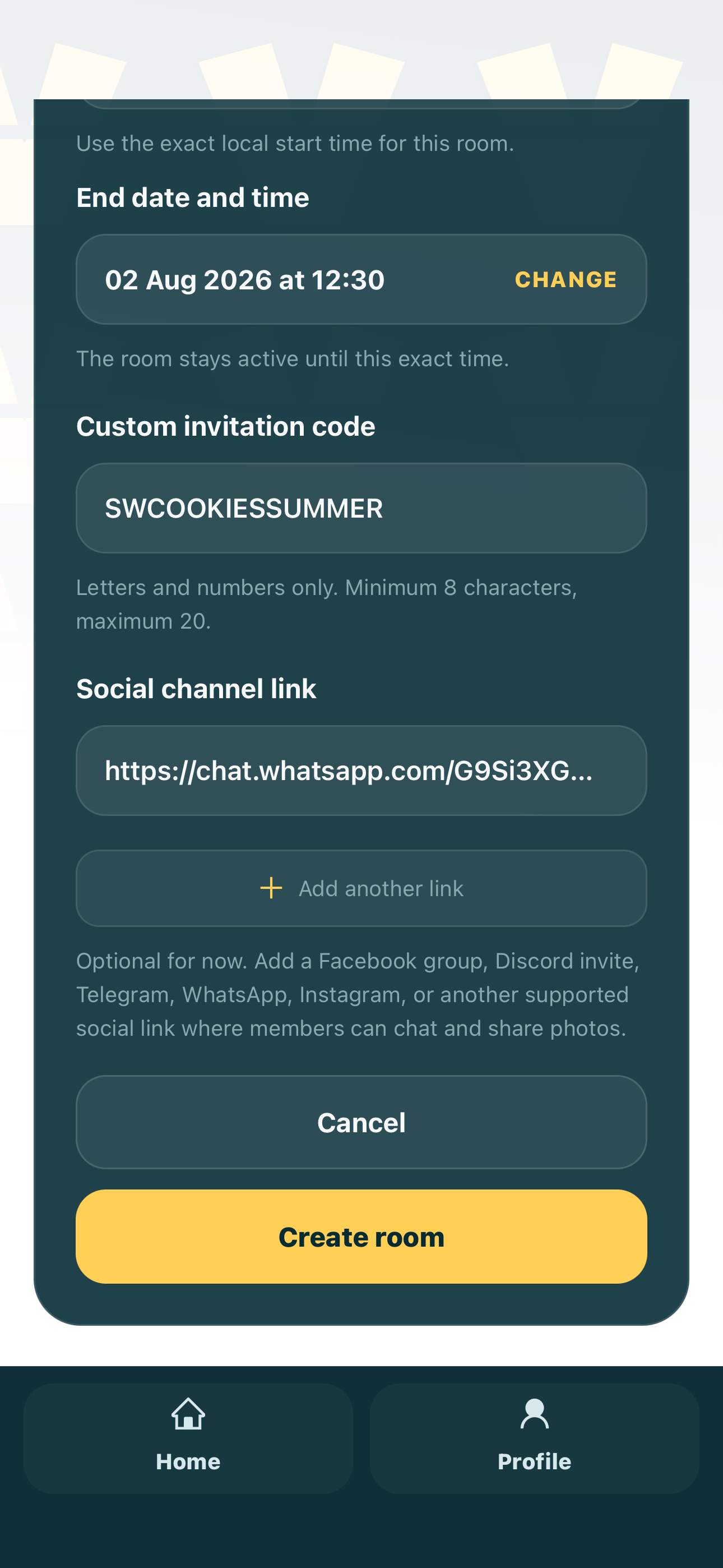
ViedME accepts only supported community-platform links: Facebook, Messenger, Instagram, Telegram, Discord, WhatsApp, and Reddit. Because of EU privacy and GDPR principles, ViedME does not accept arbitrary communication inputs or store private conversation data. Any group discussion, announcements, or side communication should stay outside ViedME on the platform your group already uses.
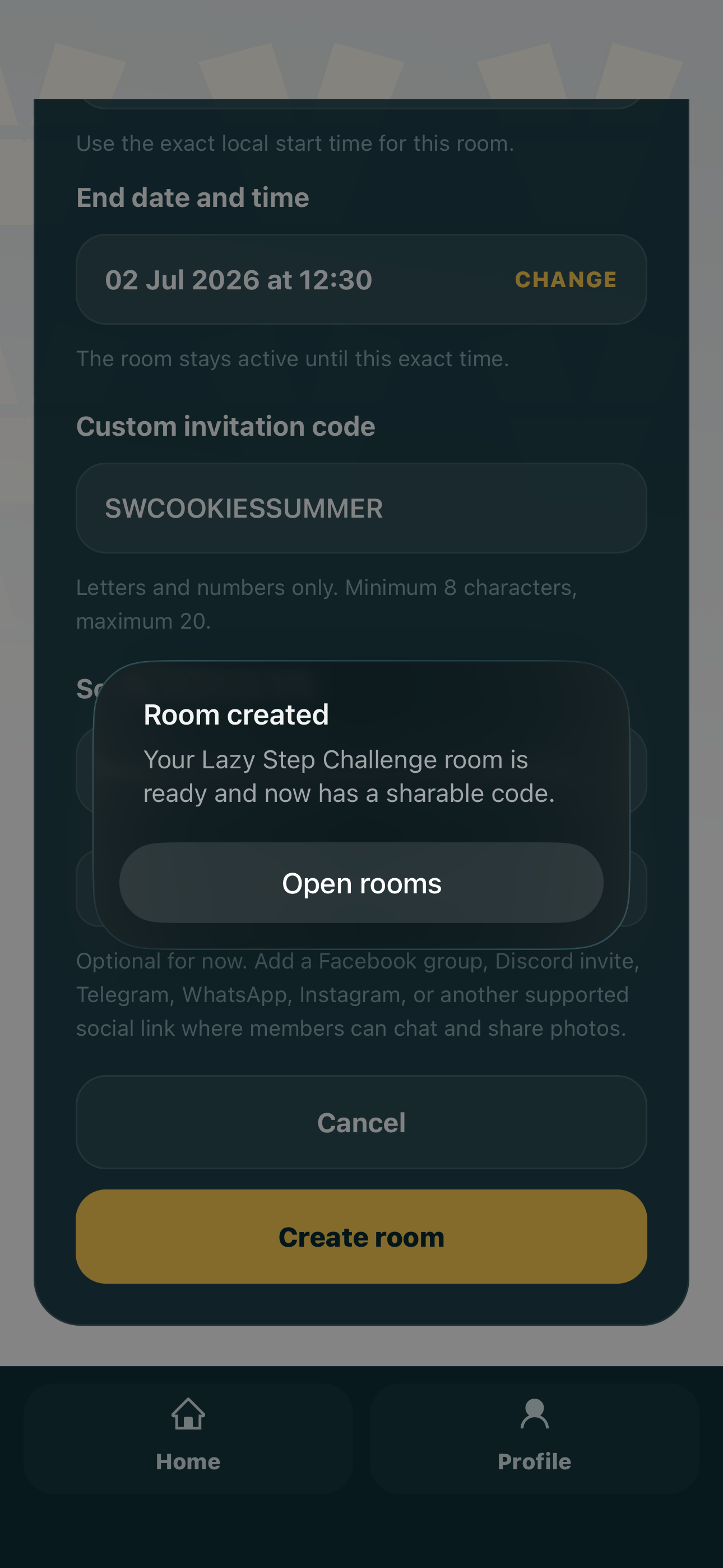
After saving the setup, ViedME confirms that the room has been created. This is the handoff from configuration to actual room ownership.
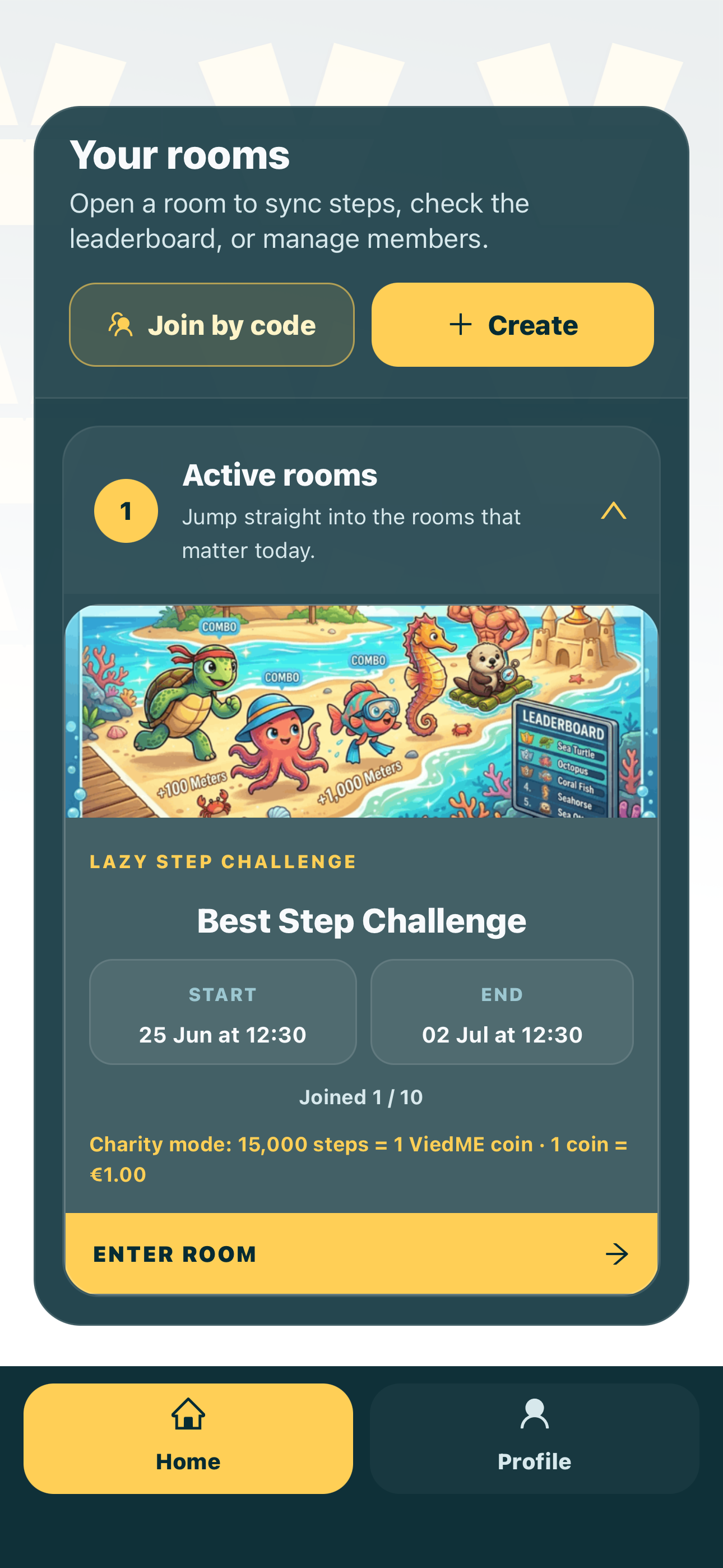
Look at the room preview and confirm that the image, title, description, and overall presentation feel right before inviting players.
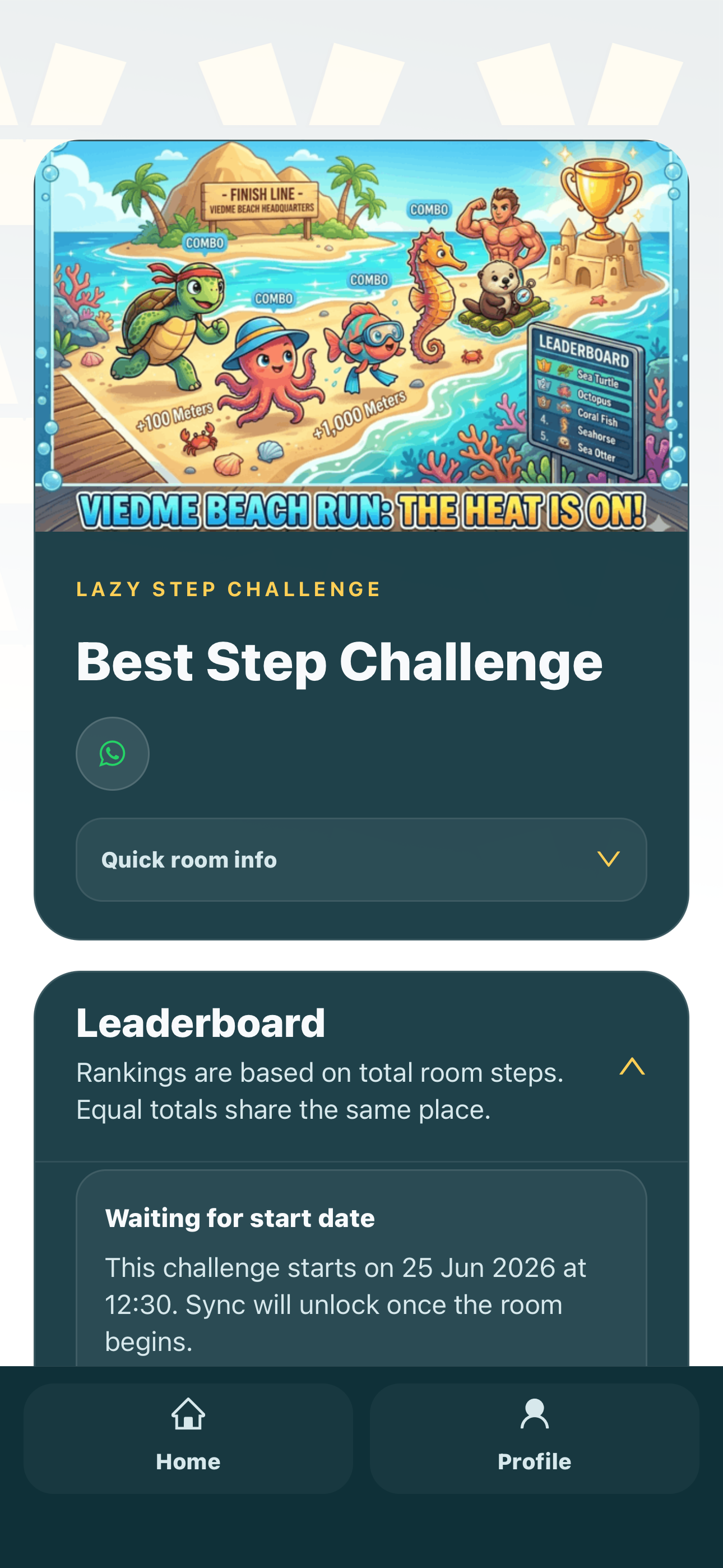
Enter the room detail screen to see the created room as the owner. This is where the room becomes a live space, not just a setup form.
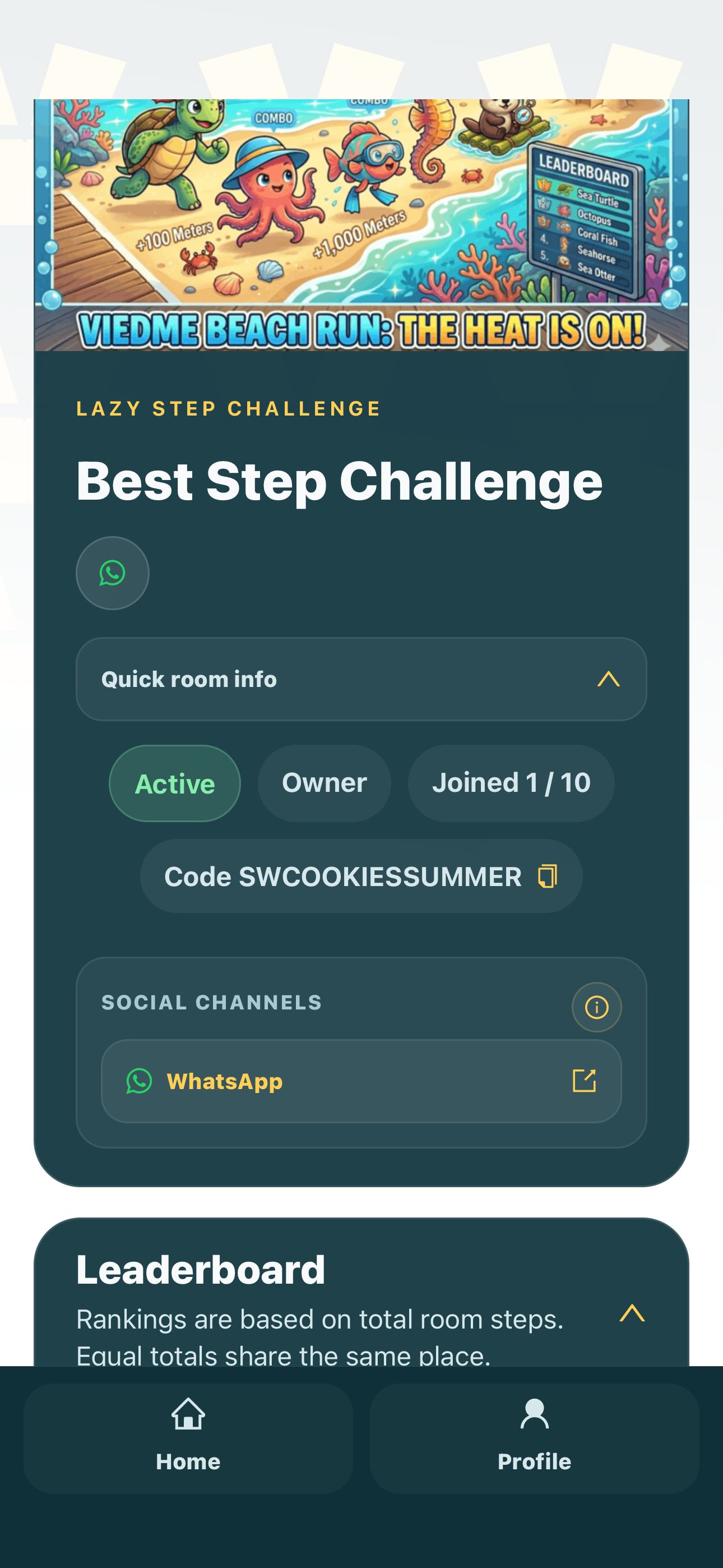
Expand the quick room information area to reveal useful room details. This section helps owners find the information needed for sharing and managing the room.
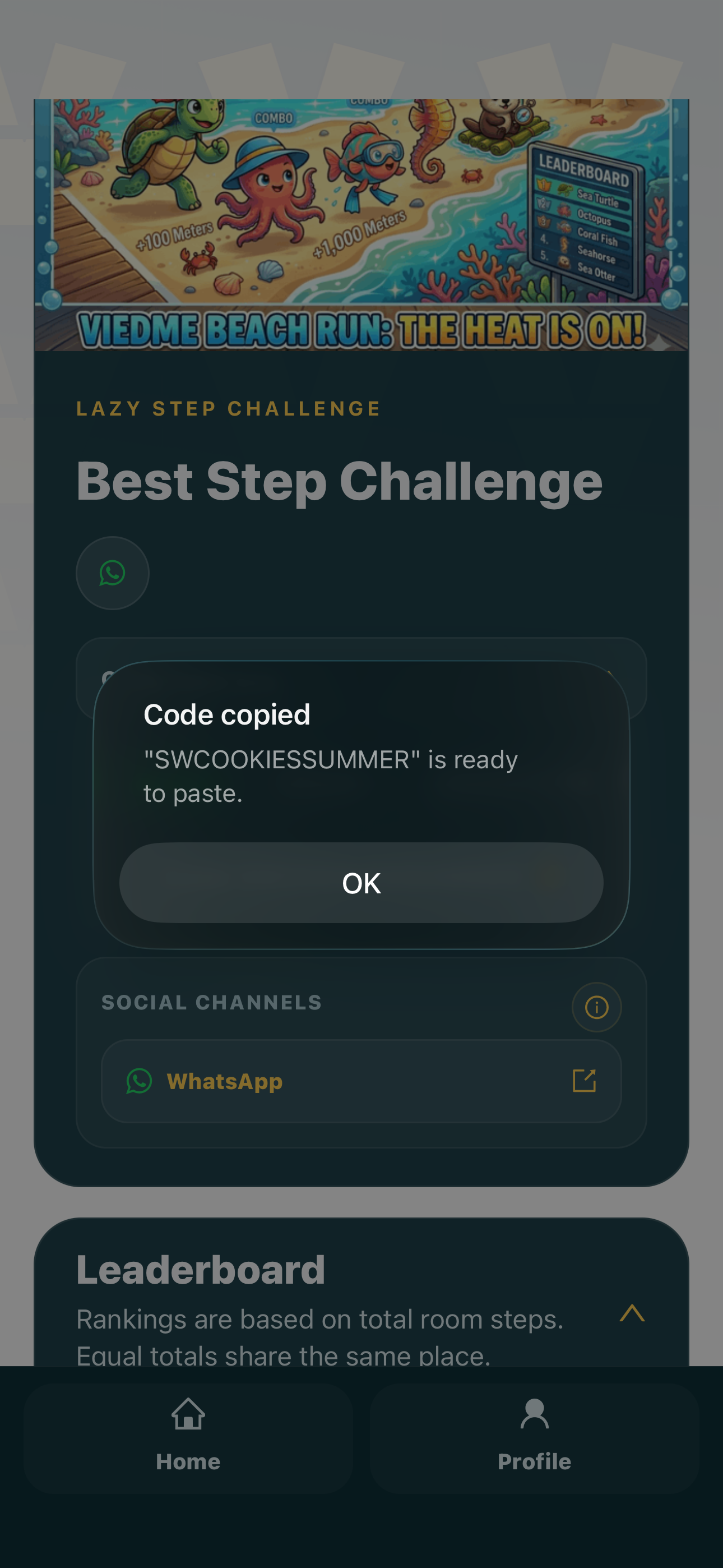
Once the code is visible, share it with the people you want inside the room. Players use this owner-generated code to join the private challenge.
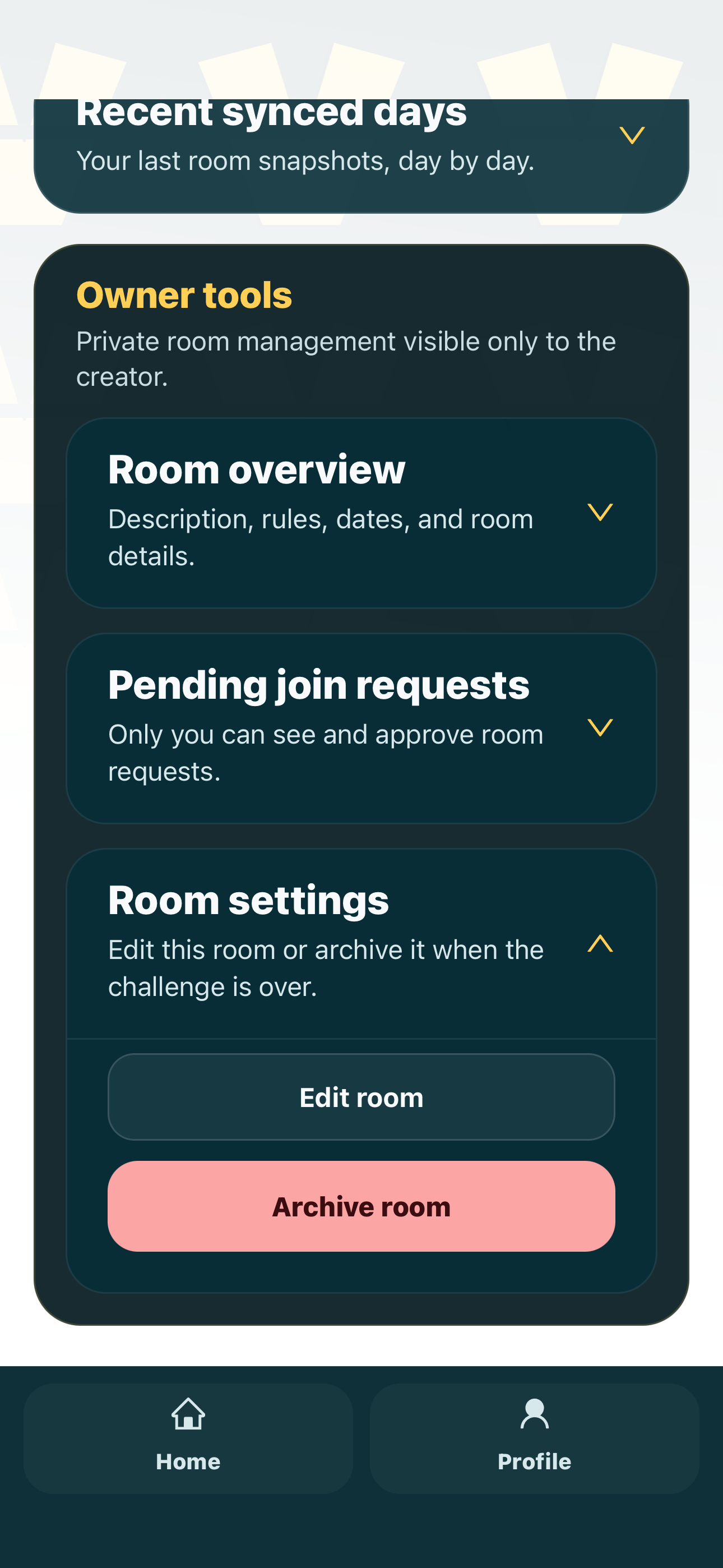
If you notice a typo, unclear description, wrong link, or setup detail that needs adjustment, open the room settings from the room detail screen. Publishing the room does not lock you out of responsible edits.
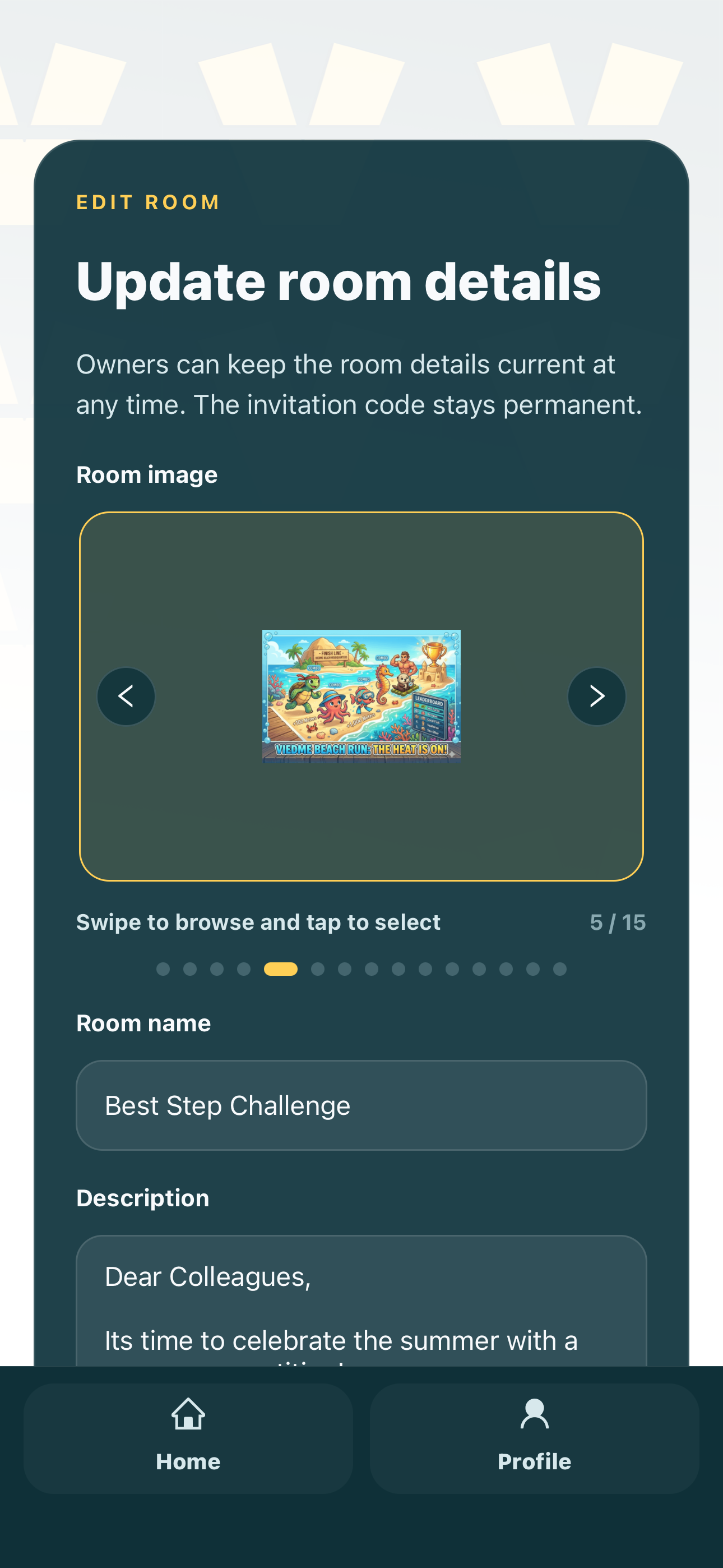
Use the edit room modal to update the room details when needed. This gives owners confidence to correct information, clarify rules, or improve the room before more players join.
Room owner tip
Treat the name, preview image, description, and invite code as part of the same promise. They tell people what kind of challenge they are joining before the first step is counted.
FAQ
This guide uses Lazy Step Challenge as the example flow, but many room setup principles also apply to other ViedME challenge formats.
The room owner creates or confirms the private invite code during setup. Players need that code to join the room.
Technically yes, but ViedME works best when the code is shared intentionally with the people you actually want in the private challenge.
Create it in the app
The guide shows the flow, but room setup, invite codes, scores, and competition happen inside ViedME. Install the app, create your room, then share the code only with the people you want inside.