3 apps
ViedME, Google Fit, and Health Connect work together on Android.
 VIEDME PRIVATE CHALLENGES
Android step tracking works through Health Connect. The easiest path for most users is to install Google Fit, let Google Fit track steps, connect it to Health Connect, and then allow ViedME to read step data.
3 apps
ViedME, Google Fit, and Health Connect work together on Android.
Google Fit first
Use Google Fit as the simple step source if you do not already use another fitness app.
More options
Health Connect can also receive data from apps such as Samsung Health.
Video tutorial
The video shows the full Android setup visually: installing the extra apps, preparing Google Fit, connecting Health Connect, and getting ViedME ready to read steps.
Open on YouTubeInstall first
Google Fit is the simplest step source for most users. Health Connect is the Android permission layer that lets ViedME read approved step data.
Before you begin
Think of it as a short chain: Google Fit records your steps, Health Connect shares the step data privately between approved apps, and ViedME reads the allowed data for your step challenge leaderboard. If you already use Samsung Health or another Health Connect compatible app, you may use that as your step source instead. For first-time Android setup, Google Fit is usually the simplest route.
Walkthrough
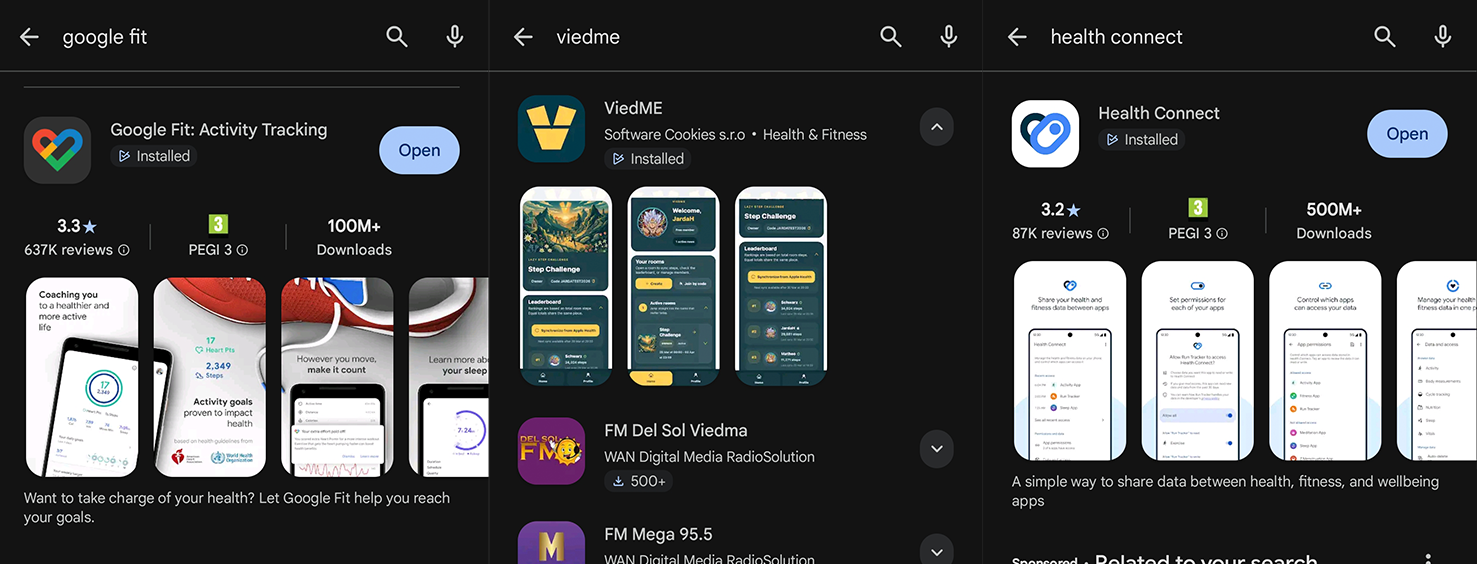
Start with the three apps needed for the simplest Android setup. ViedME runs the challenge, Google Fit tracks your steps, and Health Connect shares approved health data between apps.
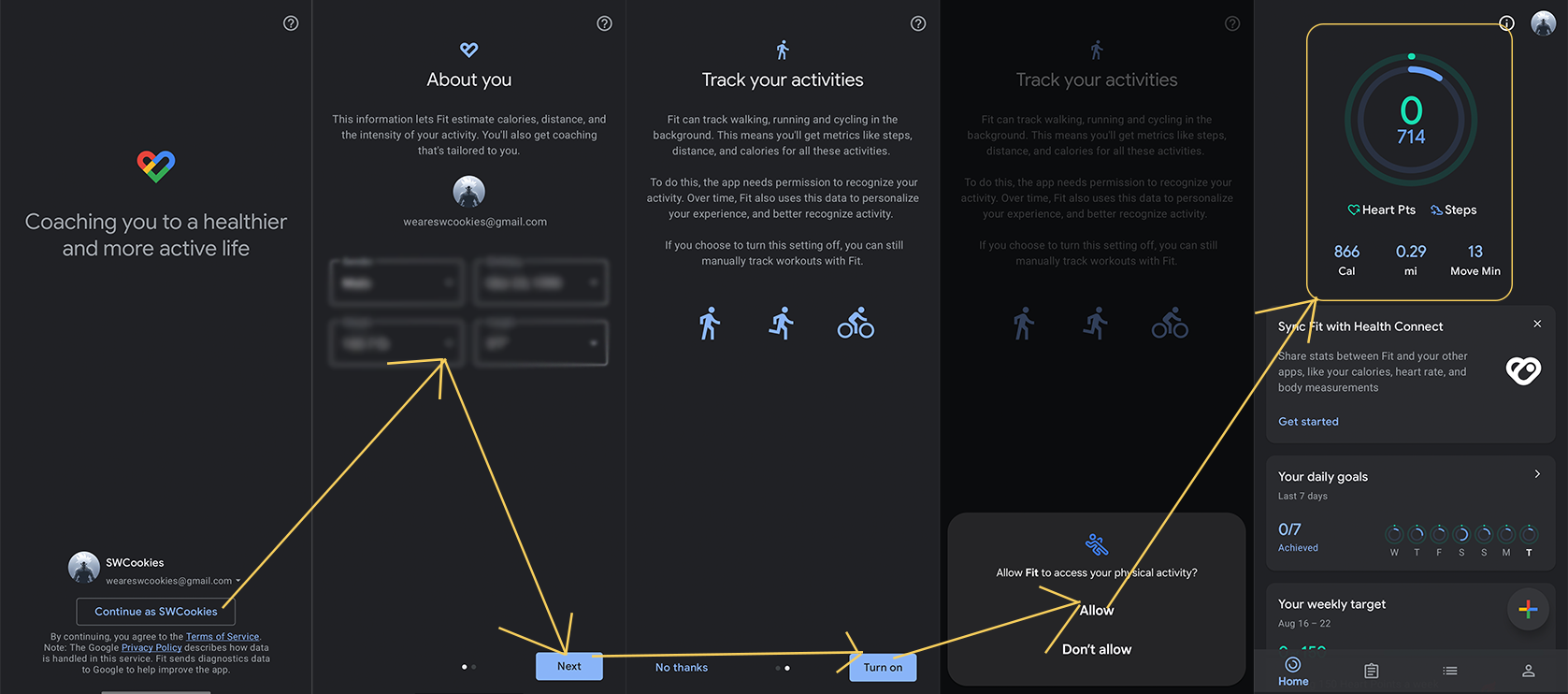
Open Google Fit, sign in with your Google account, and finish the first-start screens. When Android asks for activity or physical activity permission, allow it so Google Fit can count steps from your phone.
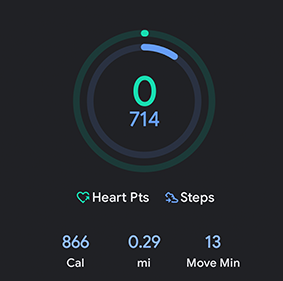
Before connecting anything else, confirm that Google Fit shows steps after you move around. You do not need a perfect number yet. You only need to see that step tracking is active.
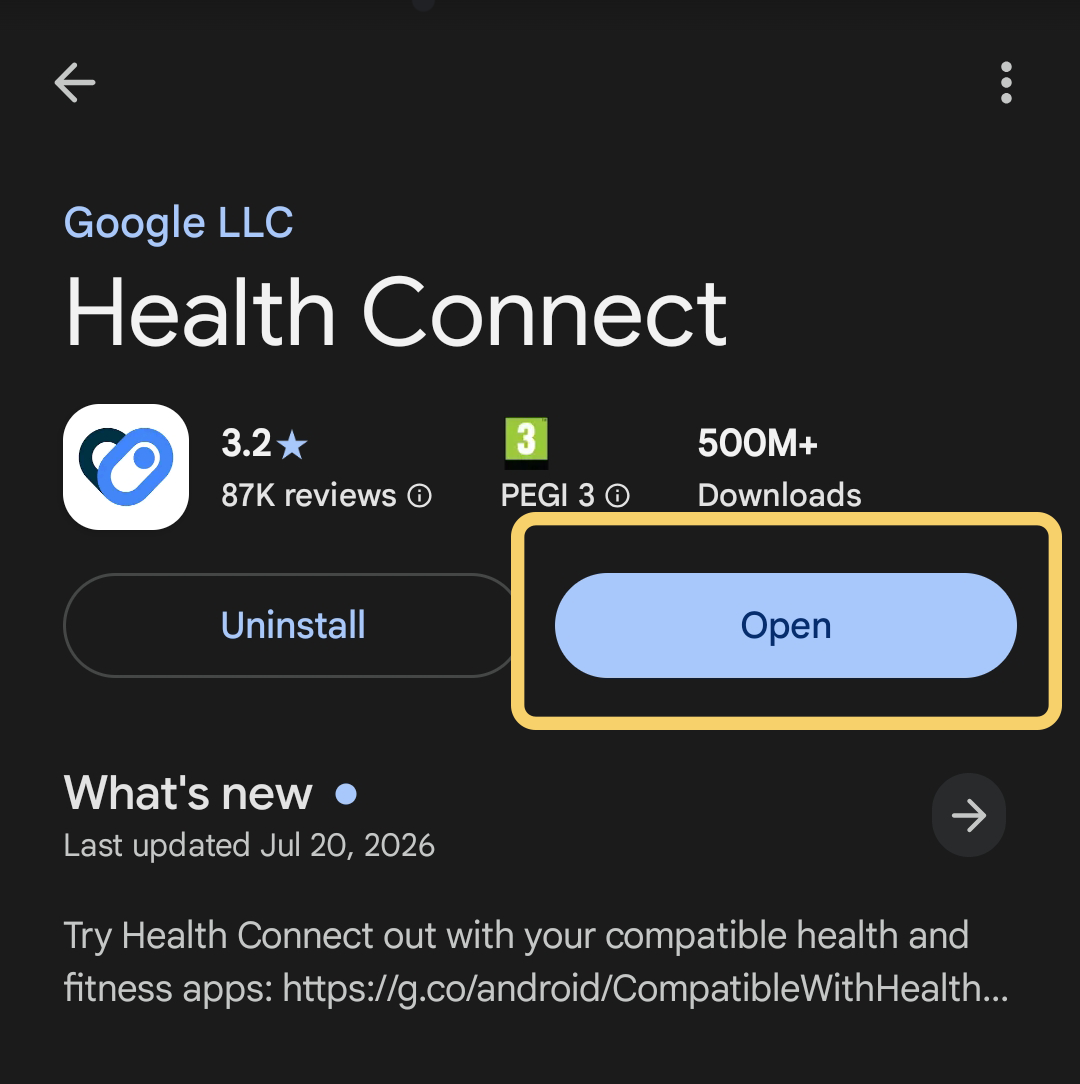
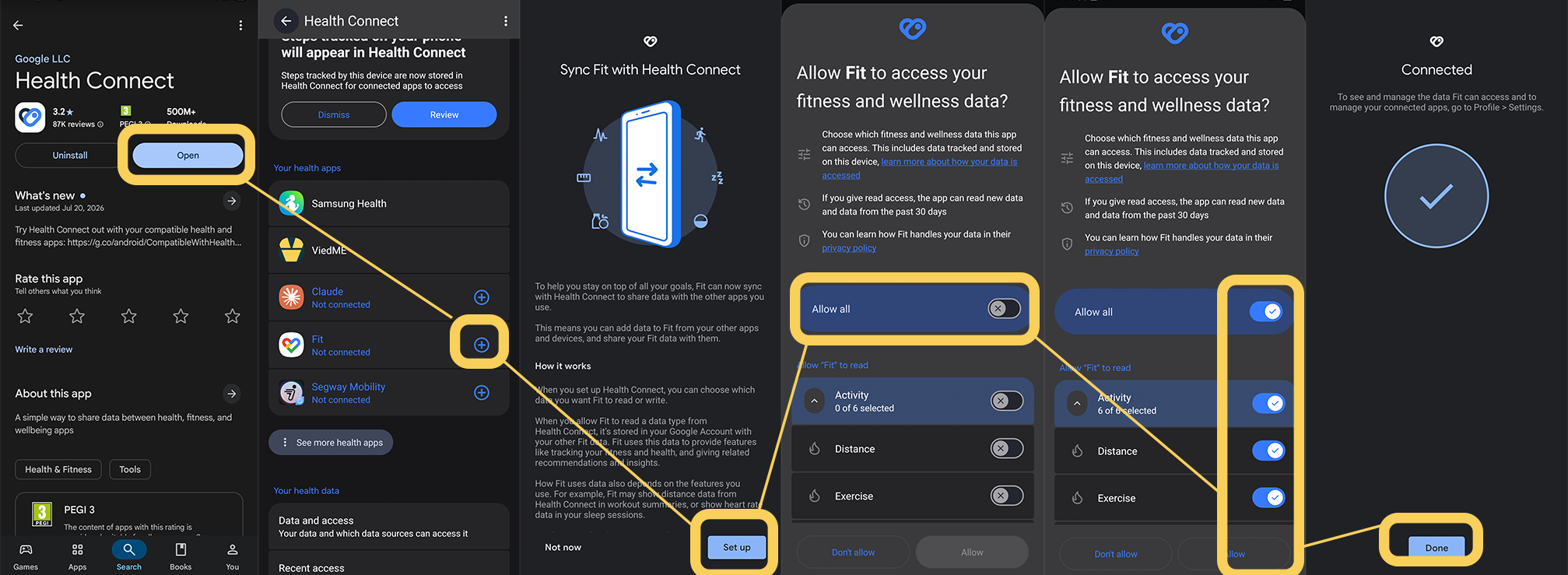
Open Health Connect and go to App permissions. This is the place where you decide which apps can read or write health data on your phone.
Find Google Fit in Health Connect. If your version shows a plus sign or an add-app button, use it to add Google Fit. Then allow Google Fit to share step data with Health Connect.
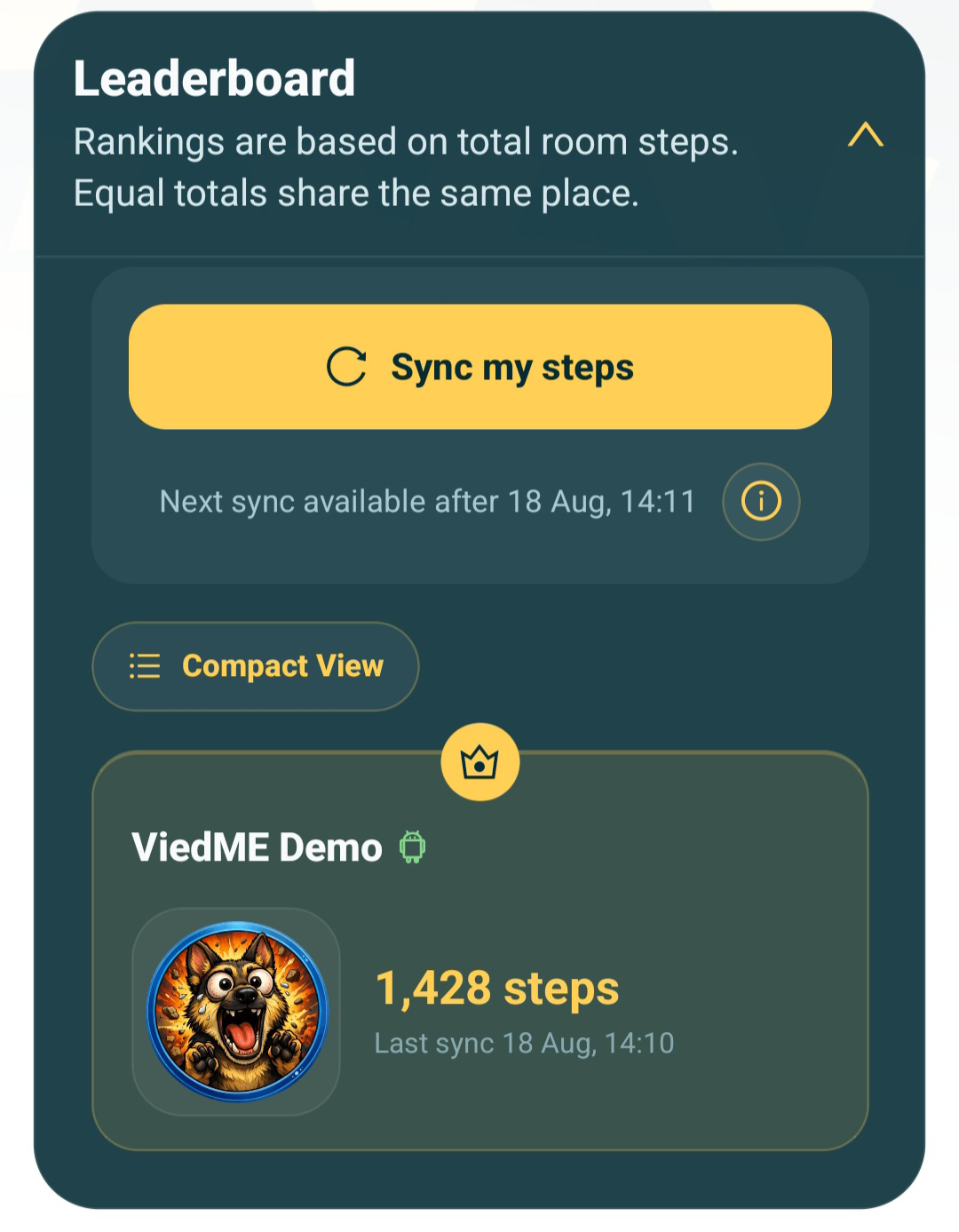
Return to ViedME, open your step challenge, and tap sync steps. When Android asks for Health Connect permission, allow ViedME to read steps. Then check that your challenge total appears.
Important note
Health Connect is built into many newer Android versions. On Android 14 and newer you may open it from system settings. On older versions you may need to install the Health Connect app from Google Play. Either way, the goal is the same: allow the app that tracks your steps and allow ViedME to read them.
Other step sources
If you use Samsung Health, you can connect it through Health Connect instead of Google Fit, as long as Samsung Health is allowed to write step data and ViedME is allowed to read it.
Health Connect supports more apps than Google Fit. The same rule applies: your tracker app must send steps into Health Connect, and ViedME must be allowed to read steps from Health Connect.
If several apps write steps at the same time, totals can feel confusing. For the simplest experience, start with one source app and confirm it works before adding another.
FAQ
Google Fit is the simple step tracker. Health Connect is the Android permission layer that lets approved apps share health data. ViedME reads steps from Health Connect for Android step challenges.
Yes. Health Connect can work with apps such as Samsung Health. Google Fit is recommended here because it is the easiest first setup for many Android users.
On Android 14 and newer, Health Connect may be inside system settings. Search Android settings for Health Connect. On older Android versions, install Health Connect from Google Play.
Check that Google Fit is counting steps, Google Fit is connected in Health Connect, ViedME has permission to read steps, and then try syncing again after a short wait.
Finish in ViedME
If steps do not appear immediately, walk a little, open Google Fit once, then return to ViedME and try syncing again. Android health data can take a short moment to move between apps.