3 steps
Log in, enter the room code, and wait for approval.
 VIEDME PRIVATE CHALLENGES
Use this guide when a room owner, coach, organizer, or friend sends you a private code. You log in, choose Join by code, submit the code, and wait for the owner to approve your request.
3 steps
Log in, enter the room code, and wait for approval.
Private access
The code connects you to a specific room, not a public list.
Owner approval
The room owner decides who is accepted into the challenge.
Before you start
Room codes are usually sent through e-mail, chat, event pages, or a community group. Enter the code exactly as shared. After you submit it, your join request goes to the room owner for approval.
Walkthrough
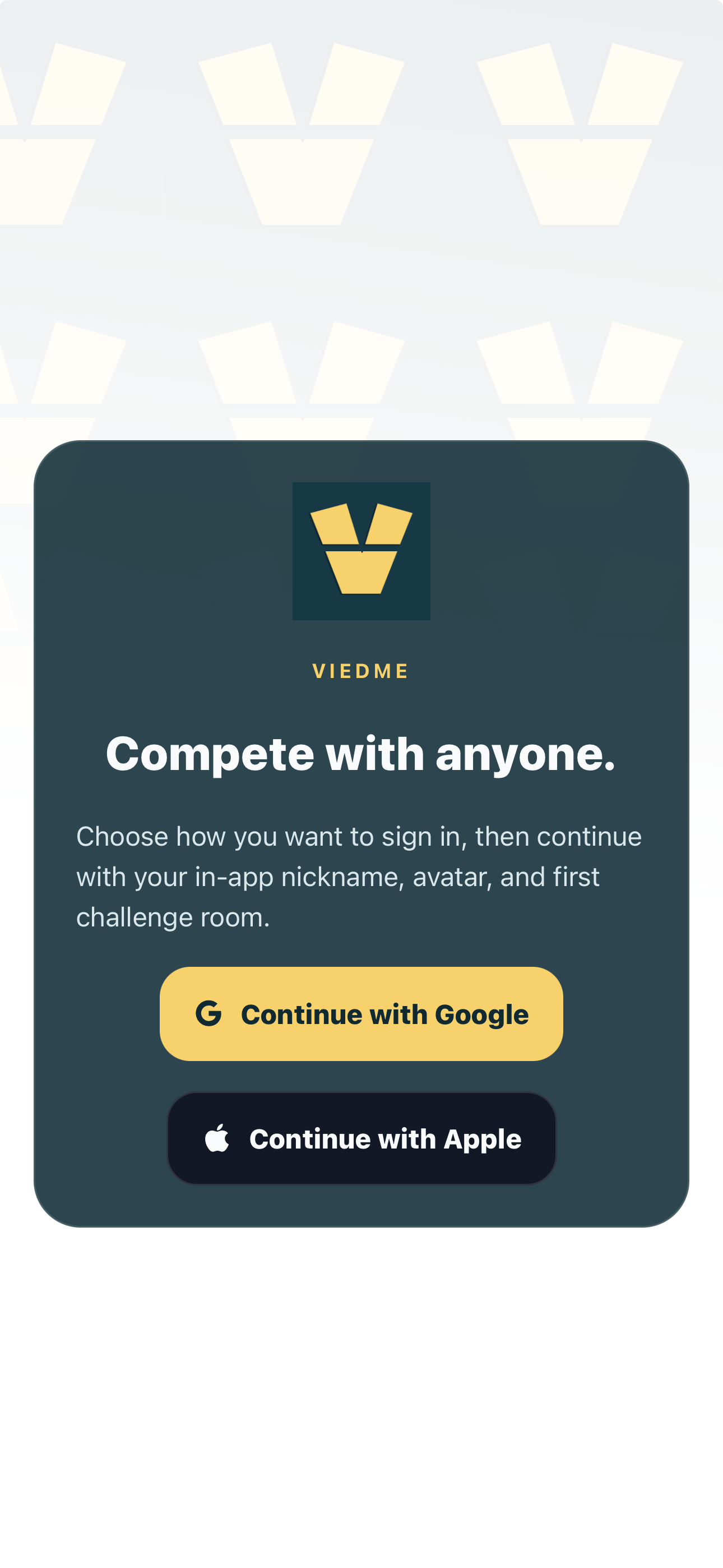
Open ViedME and sign in with Apple or Google. If this is your first time, finish the short onboarding first so the app can create your profile.
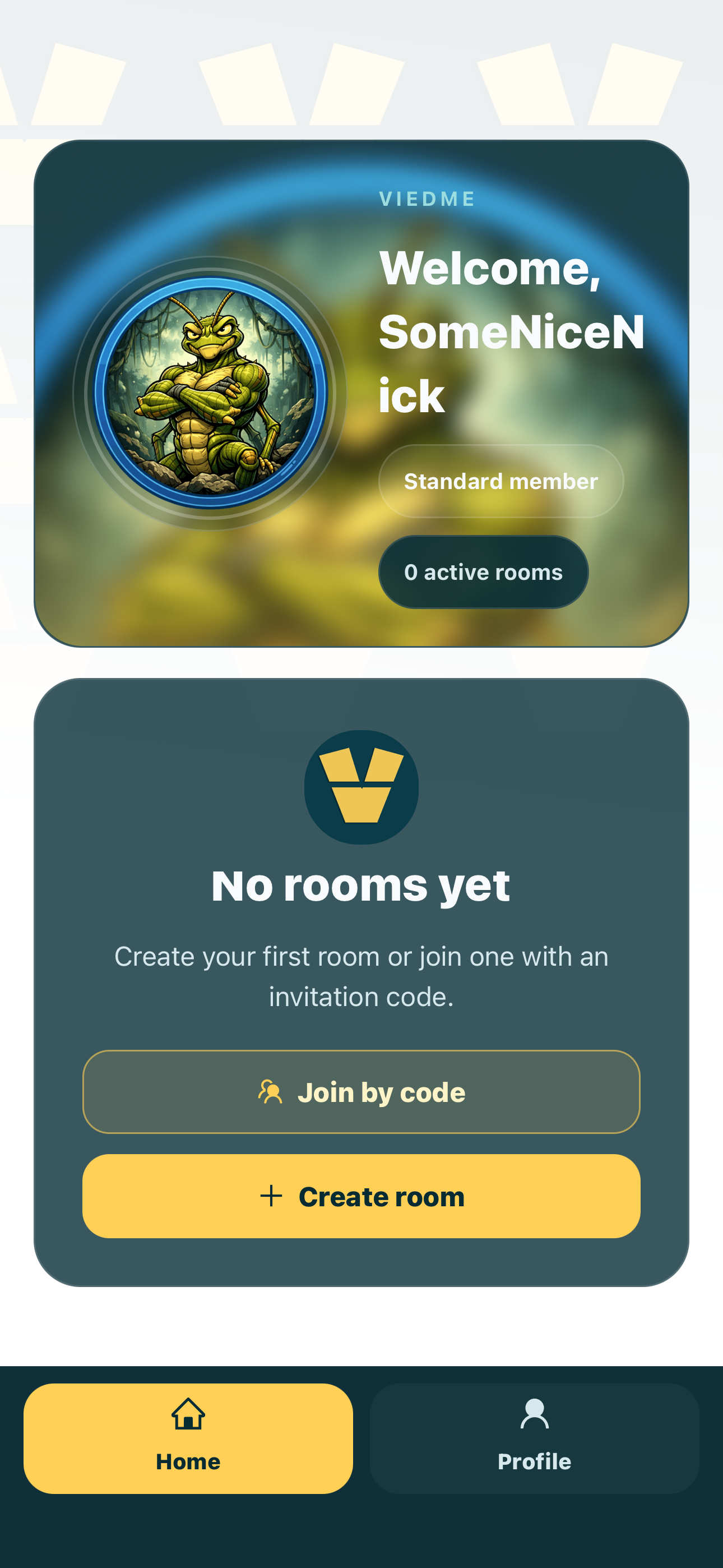
On the start screen, select the option for joining an existing room by code instead of creating a new room.
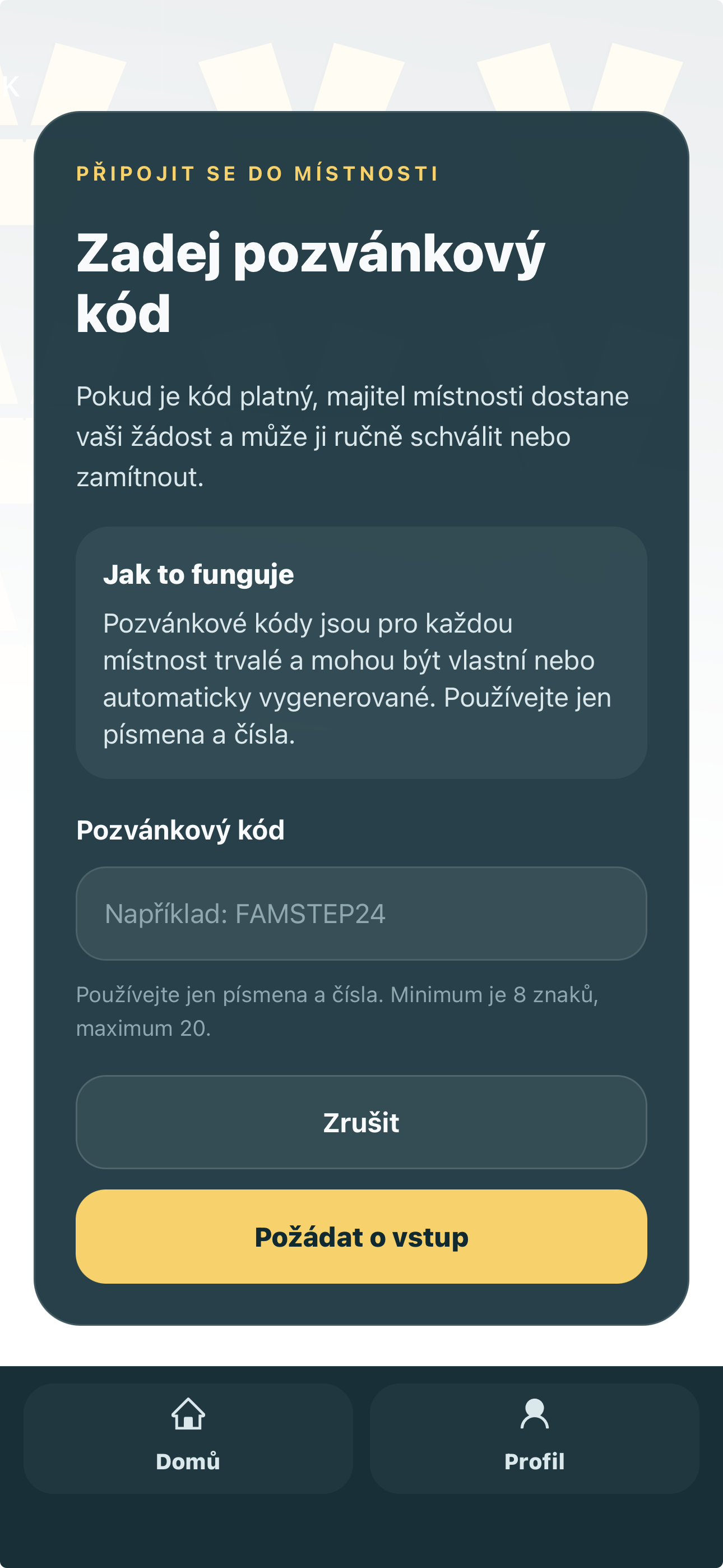
Type or paste the code exactly as the owner shared it, submit the request, and wait. The room owner must approve your request before the room becomes available to you.
Participant tip
If your code does not work, check for extra spaces, missing letters, or an old campaign code. If the request is pending, the owner still needs to approve you.
FAQ
The room owner or organizer shares it with participants by e-mail, chat, social group, event page, or direct message.
Not always. After you submit the code, the room owner may need to approve your join request first.
Check the spelling, remove extra spaces, confirm the code is still active, and ask the owner to resend it if needed.
Join in the app
The guide explains the flow, but joining the room happens inside the ViedME mobile app.